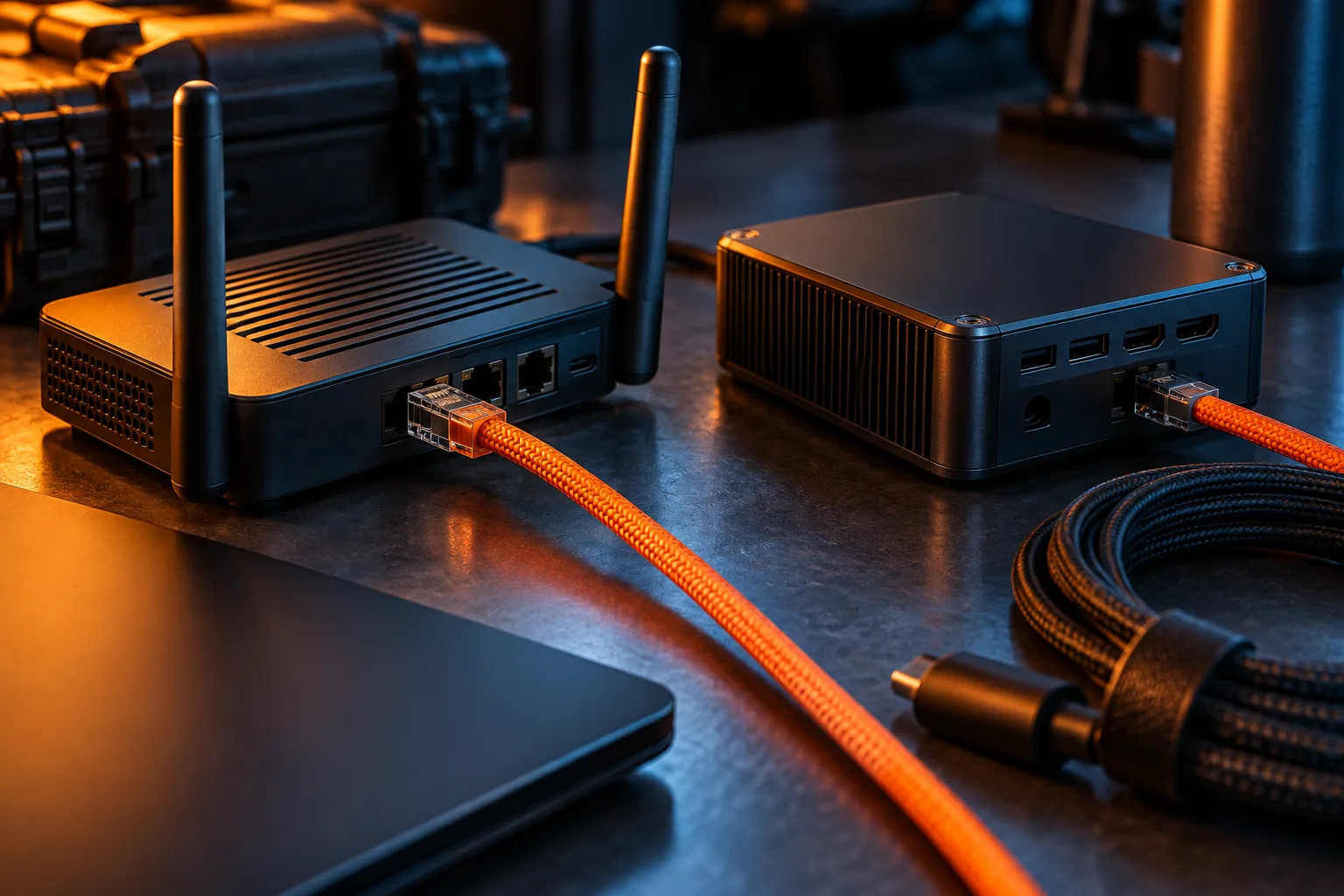
Pick the path from the wiring you already have
The best option depends on what is already in the walls. A wired path from router to desk takes Wi-Fi out of the desk's equation. If you use mesh, it also lets the mesh point at the desk end use the wire for backhaul. This guide relies on standards and vendor documentation. This publication has not measured any of these technologies in a home.
| Option | Good fit when | Main risk | Skip when |
|---|---|---|---|
| New Ethernet run | You can route a cable between router and desk | Labor, wall access, rental restrictions | A short existing run or MoCA already works |
| MoCA over coax | A coax outlet exists near both the router and the desk | Splitters, missing point-of-entry filter, high-split cable modem overlap | No usable coax, or the coax path passes through unknown splitters you cannot access |
| Powerline or G.hn over mains | No cable can be run and outlets are on the same wiring | Circuit layout, power strips, motor-driven appliances | Adapters must cross separate wiring systems |
| Mesh with wired backhaul | Your mesh units have Ethernet ports and you can link them | Some points have no Ethernet; switch placement | Wireless mesh already serves the desk well |
Ethernet: the reference option
A direct cable is the option the others are compared against. For mesh systems, Google recommends at least CAT5e cable for Nest Wifi Pro, Nest Wifi and Google Wifi. If you need more ports, it says the Wi-Fi router should sit between the modem and a switch, with points and switches downstream so the router can manage the points over Ethernet. Google recommends an unmanaged switch. If you use a managed switch, it says to turn off Spanning Tree Protocol and enable BPDU forwarding, to avoid loop problems. [7]
Two practical checks before drilling. Do you own the property, or do you have permission to alter it? Would a flat cable along the baseboard or under a door cover the distance without any drilling? In a rental, a well-routed surface cable is often allowed when drilling is not.
MoCA: Ethernet over coax, with filter and splitter caveats
MoCA uses a home's coaxial TV cabling. The MoCA Alliance's MoCA Home 2.5 page cites 2.5 Gbps MAC throughput and less than 5 ms latency. The same page also lists under 2.5 ms one-way average latency. These are the Alliance's own figures, and the page also cites field tests it published comparing mesh with and without MoCA backhaul. Treat both as manufacturer-side claims, not independent measurements. Your adapters' Ethernet ports and the coax plant will set what you actually get. [1]
Hitron, which makes MoCA adapters, describes the role of a point-of-entry filter. The filter keeps MoCA traffic inside the home and blocks interference from the cable modem's upstream frequencies. Install it at the main splitter where the provider's coax first enters, or at the first splitter if there are several. Hitron lists slow speeds, unstable connections and drop-offs as signs that one is needed. It also says low-split and mid-split cable modems normally coexist with MoCA, while high-split modems can operate up to 1218 MHz and overlap the MoCA band. If your cable provider recently upgraded your modem, check which kind you have. [2]
Map the coax before you buy. Find each splitter, note how many outputs it has and where they go, and confirm that the router end and the desk end are on the same coax tree. A splitter hidden in an attic or a shared utility closet can decide the outcome.
Powerline and G.hn: the no-new-cable fallback
Powerline adapters send network traffic over the home's electrical wiring. ITU-T Recommendation G.9960 covers unified high-speed wireline-based home networking transceivers. ITU's summary says it can operate over premises wiring, including inside telephone wiring, coaxial cable and power-line wiring. Adapters sold as G.hn are commonly associated with this family; check whether a product's spec sheet cites G.9960 rather than assuming it. [3][4]
Vendor guidance focuses on installation. TP-Link's powerline user guide says to plug each adapter directly into a wall outlet, and not into a power strip, extension cord or surge protector. It says to plug the second adapter into a wall outlet on the same electrical circuit, and notes that all adapters should be on the same electrical wiring system. Its troubleshooting FAQ says power strips and surge protectors can filter or block the signal and significantly reduce the rate. It also says devices with motors, such as air conditioners, washing machines and fans, can interfere. [5][6]
This guide does not quote headline powerline speeds. Packaging rates are physical-layer figures, and we found no current official standards-body source for them. Plan from the speed you measure at the desk.
Worked example: a fictional spare-room office
Fictional scenario: Lee works from a spare bedroom two floors above the router. Mesh Wi-Fi gives a usable connection, but video calls drop when the microwave runs. A cable run would mean drilling through two floors. There is a coax outlet in the spare room and another beside the router.
Lee's plan: trace the coax from the entry point and photograph each splitter. Check whether a point-of-entry filter is already fitted at the first splitter. Look up whether the cable modem is a high-split model. If the coax path is clear and the modem is not high-split, a MoCA pair goes to the shortlist. If the coax path cannot be traced, Lee tests a powerline pair plugged straight into wall outlets, away from the kitchen appliances. Each option is judged on the same test: a call from the desk while someone else uploads, with loaded latency recorded. This is a planning example, not a measured result.
Pitfalls and who should skip the wire
Whatever you choose, run the same test before and after: a call or loaded-latency test from the desk at a busy time. If nothing improves, the bottleneck is probably upstream, and the upload and bufferbloat guides are the next step.
- Skip new hardware if the desk's Wi-Fi already holds steady during calls and uploads; a wire fixes a link problem, not an ISP problem.
- Do not install MoCA without checking for a point-of-entry filter at the first splitter. [2]
- Check whether your cable modem is high-split before choosing MoCA on a shared coax line. [2]
- Plug powerline adapters into wall outlets, not power strips, extension cords or surge protectors. [5][6]
- Keep powerline adapters away from motor-driven appliances where possible. [6]
- Confirm that each mesh unit has an Ethernet port before planning a wired backhaul; Nest Wifi points do not. [7]
- Put a switch downstream of the mesh router, not between the modem and the router. [7]
Questions before you decide
Can MoCA and cable internet share the same coax?
Often, but not always. Hitron's support article says low-split and mid-split cable modems normally work alongside MoCA. High-split modems can operate up to 1218 MHz, overlap the MoCA band and cause interference. It also recommends a point-of-entry filter at the first splitter.
Do powerline adapters need to be on the same circuit?
TP-Link's user guide tells you to plug the second adapter into a wall outlet on the same electrical circuit, and not into a power strip, extension cord or surge protector. Its troubleshooting FAQ says power strips and surge protectors can filter the signal and reduce the rate significantly.
Does every mesh point support a wired backhaul?
No. Google's help page says Nest Wifi Pro, Nest Wifi routers and Google Wifi have Ethernet ports, but Nest Wifi points do not and cannot be hardwired. Check the exact model of each unit before you plan cable runs.
Sources & verification
Product details and prices can change. Check the linked provider before buying.
- MoCA Alliance: Standard MoCA Home 2.5 Accessed 13 Oct 2026
- Hitron support: Do I need a PoE filter to use with HTEM4? Accessed 13 Oct 2026
- ITU-T Recommendation G.9960 Accessed 13 Oct 2026
- ITU-T G.9960 summary (Amendment 3) Accessed 13 Oct 2026
- TP-Link user guide: Use your powerline adapter (TL-PA9020P KIT V4) Accessed 13 Oct 2026
- TP-Link FAQ: Slow powerline adapter speed Accessed 13 Oct 2026
- Google Home and Nest Help: Hardwire Nest Wifi Pro, Nest Wifi, or Google Wifi with Ethernet Accessed 13 Oct 2026
Sources link directly to providers. Product buttons may use separately labeled affiliate links. Read our disclosure.