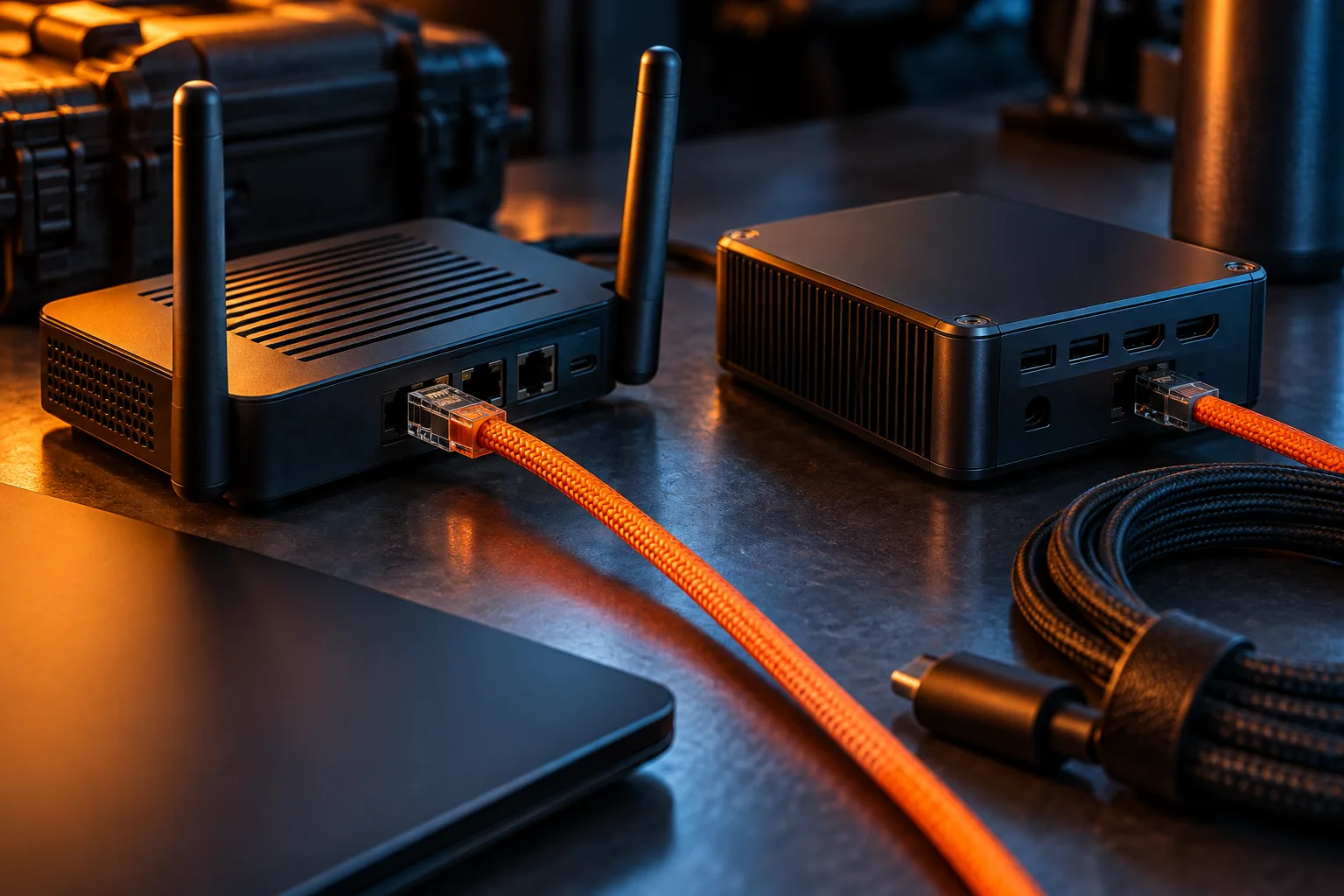
Comet Pro at a glance
This review is built from GL.iNet's US product page and its KVM documentation, read on 30 October 2026. We have not tested the device. Where the documentation is silent, we say so rather than fill the gap. GL.iNet's product page showed Comet Pro at $179.99 (USD) on that date, titled as a Wi-Fi 6 remote KVM with a touchscreen. The page notes that prices can vary by location. The same page lists an ATX Board and a Fingerbot (FGB-01) as separate accessories. [1]
| Item | What GL.iNet documents | What it means for you |
|---|---|---|
| Listed price | $179.99 (USD) on GL.iNet's product page, 30 October 2026 [1] | Add tax, shipping and any power accessory you need |
| Network | Ethernet, or 2.4 GHz and 5 GHz Wi-Fi joined from the touchscreen [2][8] | Works where no Ethernet drop reaches the computer |
| Video connections | HD IN from the computer; optional HD OUT to a local monitor [2] | Someone on site can still use a normal screen |
| Keyboard, mouse, drive | One USB-C cable to the computer [2] | One target computer per Comet Pro [4] |
| Local access | glkvm.local or the IP shown on the touchscreen, in Chrome or Edge [2] | No account needed on the same network |
| Remote access | GLKVM cloud at glkvm.com, GLKVM app, Tailscale, ZeroTier or NetBird [2][4] | No open ports or public IP needed, per the FAQ [4] |
| Virtual media | ISO image mounting plus a read-write shared drive [3] | OS reinstall and file transfer without a USB stick on site |
| Power control | Wake-on-LAN built in; ATX board and Fingerbot sold separately [3][4] | Budget for an accessory if the PC must be switched on from off |
| Security settings | Admin password set on first access, 2FA, custom TLS certificate [2][3] | Turn on 2FA before enabling remote paths |
Video: the settings that matter for recovery
The console guide lists six quality levels, from Auto and Low up to Ultra-high and Lossless, and several transfer methods. WebRTC is the default family. A Direct mode is described as lowest latency, with no audio. There is also a Latency Mode with a choice between Lowest Latency and Smooth Display on firmware 1.9.0 or later, and a Smart mode that reduces bandwidth. On a weak hotel or phone connection, the Smart mode and a lower quality level are the first settings to try. [3]
Headline resolution matters less than whether the box sees the screen you need. GL.iNet's own troubleshooting page warns that BIOS output usually goes only to the primary display. On a laptop that is the built-in panel, so the KVM may see nothing until the operating system loads. Many desktop graphics cards and motherboards favor DisplayPort over HDMI at startup. GL.iNet's fixes are to connect the KVM to the primary output, to move the main monitor to DisplayPort, or to use a 1-to-2 HDMI splitter on the primary output. It also suggests testing with a spare monitor on the same port. If that monitor shows nothing at boot, the KVM will not either. [7]
EDID is the data a display sends to describe itself. GL.iNet says the default EDID suits most setups. A custom EDID must not exceed 2560x1440 at 60 Hz and should avoid interlaced modes. Treat custom EDID as a fix for a specific BIOS or resolution problem, not a tuning step. [9]
Virtual media: reinstall an OS or move files without a USB stick
Comet Pro offers two virtual media modes. Image Mounting presents an ISO as a read-only CD/DVD or disk that the computer can boot from. File Sharing presents a read-write USB drive named GLKVM, so files can move both ways. The console can also use a USB storage device plugged into the KVM in place of its internal storage. Formatting the disk erases its contents. [3]
GL.iNet's install walkthrough is short. Upload the ISO to Virtual Media, choose Mount To Remote, then Image mounting, and mount it. Reboot the target, press the setup key at once, set Glinet Flash Drive 1.00 as Boot Option 1, then save and exit. The pages we read do not state an upload size limit or transfer speed. Plan for a large ISO to take a while over a slow upload link. Our BIOS and reinstall guide works through the arithmetic. [6][3]
- Unmount the image and restore the normal boot order after the install, or the machine may boot the installer again.
- Keep a copy of the ISO on the KVM before you need it, so a failed machine does not wait on an upload.
- Use File Sharing, not Image Mounting, for drivers or recovery tools the running OS must read.
Cloud, Tailscale or local only
GL.iNet's FAQ says the cloud service is optional, and that remote access needs no open WAN ports or public IP. That matters if your home connection sits behind carrier-grade NAT. The GLKVM app runs on Windows, macOS, Android and iOS. The FAQ notes it does not run on Linux or ChromeOS, where the browser cloud, Tailscale, ZeroTier or NetBird are the options. [4]
The cloud has two tiers. The free Standard plan includes a lifetime basic connection, unlimited bound devices and one active remote access pathway per device. The paid Advanced plan adds a screen wall of up to 9 devices, sharing with up to 5 users and multiple concurrent pathways. The plan page did not list a price for Advanced when we read it, so check before relying on it. [5]
The Tailscale path skips GL.iNet's cloud entirely. You enable Tailscale under Apps Center in the KVM console, then reach the KVM by its Tailscale address in a browser, without the GLKVM app, and sign in with the KVM admin password. Our Tailscale versus ZeroTier guide compares the two overlay networks. [2][4]
| Access path | Accounts involved | Good fit | Watch for |
|---|---|---|---|
| Local only (glkvm.local) | KVM admin password | Lab bench, same building | No reach from outside without another path |
| GLKVM cloud or app, Standard plan | GL.iNet account plus KVM password | Simplest remote setup | One active pathway per device on the free tier [5] |
| Tailscale | Tailscale account plus KVM password | You already run a tailnet | Enable it in Apps Center first [2] |
| ZeroTier or NetBird | That service's account plus KVM password | You already use that overlay | Another service to keep updated |
Power control is a separate purchase decision
A KVM can show a frozen screen, but turning a powered-off PC back on needs another path. Comet Pro's console sends Wake-on-LAN packets to a device you pick from the LAN or add by MAC address. That only works if the target's firmware and network card support waking. [3][4]
For a real button press, GL.iNet offers two accessories, both sold separately per its FAQ. The GL-ATXPC board installs inside the case and offers a short press, a long press for forced shutdown, and restart. The FGB-01 Fingerbot sits on the power button and presses it for 0.5, 3 or 8 seconds at a light or firm strength. Our Comet Pro power-control guide covers how to choose between them. [3][4]
Security settings to switch on first
There is no default password. The quick setup guide says you create the admin password the first time you open the console. The console then offers a password change, two-factor authentication, and the option to upload your own TLS certificate in place of the pre-installed one. Firmware updates can be checked from the version number in the console, or installed from a file from GL.iNet's download center. [2][3]
Physical access is the other half. The product overview says holding a pin in the reset pinhole for 8 seconds resets the device, and the touchscreen has a lock option. Anyone who can reach the box can reset it. Place it where only trusted people can. [8]
Who should buy, who should skip
A worked example helps. Picture a fictional home server in a closet with no Ethernet drop. Its owner travels and has twice needed someone at home to fix a boot problem. Comet Pro fits that case: Wi-Fi reaches the closet, HD OUT keeps the local monitor, and virtual media covers a reinstall. The owner should still confirm the server shows its firmware screens over the HDMI port the KVM uses, and add an ATX board if the server must be powered on from off.
| Your situation | Comet Pro fits? | Why |
|---|---|---|
| One remote PC or server that sometimes fails before the OS loads | Yes | BIOS view, ISO boot and keyboard control without the OS |
| Machine has no wired network nearby | Yes | Documented Wi-Fi with Ethernet as an option [2] |
| Remote desktop already fixes every problem you have had | Skip | You would pay for recovery you do not use |
| Several computers in one rack | Usually skip | One target per Comet Pro; Comet X handles up to four [4] |
| Laptop that only shows BIOS on its own screen | Check first | BIOS output may never reach HDMI [7] |
| Server with iDRAC, iLO or another built-in management controller | Check first | The built-in controller may already do this job |
Questions before you decide
Does Comet Pro need a subscription?
Not for basic remote access. GL.iNet's KVM FAQ says the cloud service is optional and lists Tailscale, ZeroTier and NetBird as alternatives. Its cloud plan page describes a free Standard plan with a lifetime basic connection and a paid Advanced plan that adds a screen wall, device sharing and multiple concurrent access pathways. The plan page did not show the Advanced price when we read it.
Can one Comet Pro control several computers?
No. GL.iNet's FAQ says Comet Pro supports only one target device. Its four-port model, Comet X (GL-RM4PE), connects up to four targets but controls one at a time.
Why might the remote screen stay black at the BIOS?
GL.iNet explains that BIOS output usually goes only to the primary display. Laptops send it to the built-in screen, and many desktops prefer a DisplayPort output at startup. Its fixes are to connect the KVM to the primary output or use an HDMI splitter on the primary output.
Sources & verification
Product details and prices can change. Check the linked provider before buying.
- GL.iNet: Comet Pro (GL-RM10) product page Accessed 30 Oct 2026
- GL.iNet KVM Docs: GL-RM10 Quick Setup Accessed 30 Oct 2026
- GL.iNet KVM Docs: GL-RM10 Console Guide Accessed 30 Oct 2026
- GL.iNet KVM Docs: Quick FAQs about GL.iNet KVM Accessed 30 Oct 2026
- GL.iNet KVM Docs: Which KVM Cloud service plan is right for you Accessed 30 Oct 2026
- GL.iNet KVM Docs: How to install OS remotely Accessed 30 Oct 2026
- GL.iNet KVM Docs: Remote screen does not show the BIOS interface Accessed 30 Oct 2026
- GL.iNet KVM Docs: GL-RM10 Product Overview Accessed 30 Oct 2026
- GL.iNet KVM Docs: How to set EDID for KVM Accessed 30 Oct 2026
Sources link directly to providers. Product buttons may use separately labeled affiliate links. Read our disclosure.