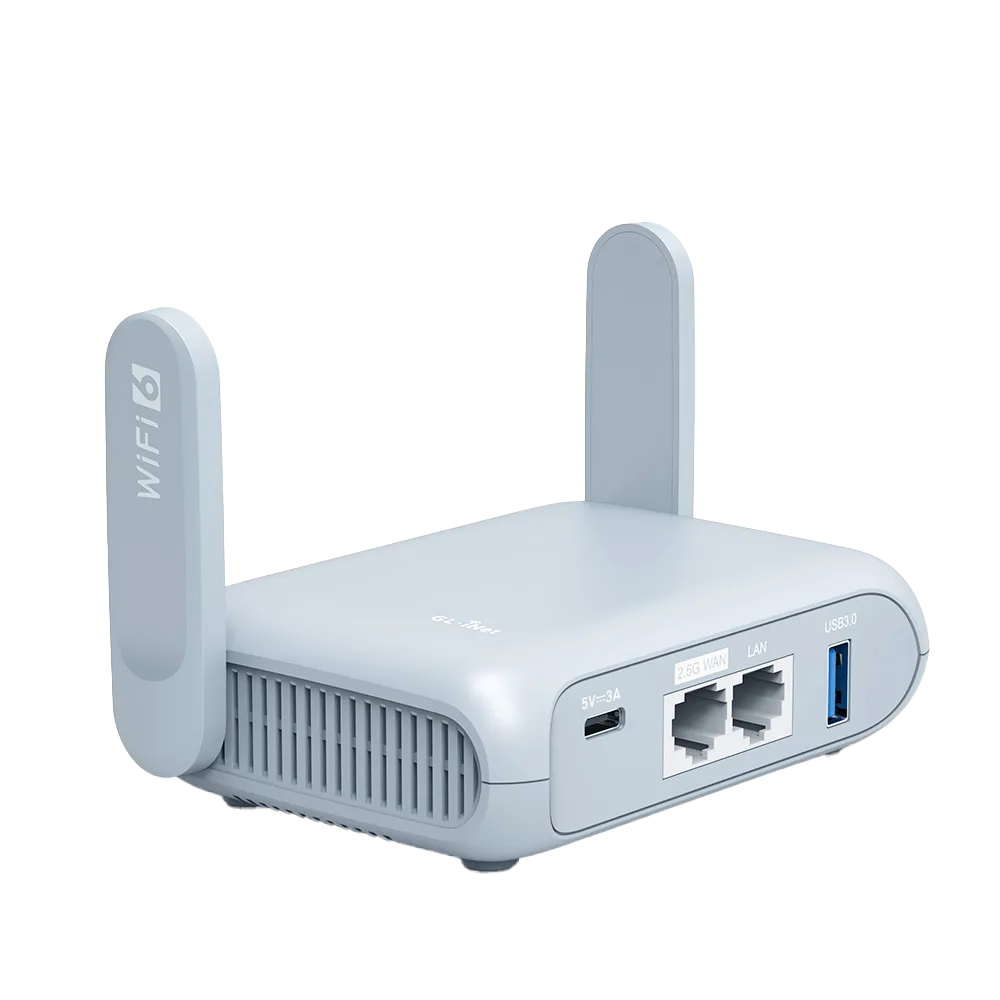
Why the first setup belongs at home
Most first-time problems are small: a password the admin page rejects, a firmware download that fails, a VPN profile that will not import. On a home connection with a laptop and a cable nearby, each takes minutes to fix. In a hotel lobby with a captive portal and no second device, the same problem can leave you offline for the evening.
The sequence below follows GL.iNet firmware 4 documentation, and the order matters. Set the password first because every later step needs the admin panel. Update the firmware before you change settings, so the backup you make at the end matches the firmware you travel with. GL.iNet notes that a settings backup only applies to the firmware version it was made on. [6]
The time allowances in the table are our planning estimates for a first attempt, not GL.iNet figures. Use them to block out an evening, and run the whole sequence at least a few days before departure so a failed step has time to be fixed.
| Step | Where in the admin panel | Planning allowance | Done when |
|---|---|---|---|
| 1. Connect and set admin password | Browser at 192.168.8.1, first-run wizard | 10 minutes | You can log in with a password you have written down |
| 2. Check and install firmware | SYSTEM, Upgrade | 15 to 20 minutes | Router reboots to the login screen on current stable firmware |
| 3. Rename Wi-Fi and set its key | First-run wizard or Wireless settings | 5 minutes | Your devices join the new name and key |
| 4. Repeater test | INTERNET, Repeater | 10 minutes | Router reaches the internet through a phone hotspot or home Wi-Fi |
| 5. VPN profile | VPN, WireGuard Client | 15 minutes | Green dot next to the profile and VPN Dashboard shows the tunnel |
| 6. Settings backup | SYSTEM, Advanced Settings, LuCI, Backup / Flash Firmware | 5 minutes | Archive file saved somewhere you can reach while away |
Step 1: connect and set the admin password
Power the router on with its adapter. Join it by Ethernet to a LAN port, or over Wi-Fi using the network name and key printed on the bottom label. GL.iNet says the label QR code contains the default Wi-Fi details, and some older models without a printed key use goodlife. Open a browser, GL.iNet recommends Chrome, Edge or Safari, and go to 192.168.8.1. The wizard asks for an admin password, then lets you change the Wi-Fi before initialization finishes. [1]
The admin password must be 10 to 63 characters and use at least two of four types: uppercase, lowercase, numbers and symbols. [2] Make it different from the Wi-Fi key. The Wi-Fi key gets shared with travel companions and typed into TVs, while the admin password controls the VPN, DNS and every other setting. Store it in your password manager before you click Next.
Step 2: check firmware before you pack
With the router online through your home network, go to SYSTEM, Upgrade. The online upgrade checks GL.iNet for the latest official firmware, then downloads and flashes it. If you see Download Failed, GL.iNet says to fix the clock under System, Time Zone by syncing to the browser. Keep the power connected; the router reboots on its own, which GL.iNet says may take a few minutes. [3]
Leave Accept Preview Plan off on a router you will depend on, since GL.iNet warns those builds may not be stable. Local upgrade, with a file from dl.gl-inet.com, is for installing a specific or beta version or for downgrading. If you downgrade, do not turn on Keep Settings. [3] For deciding when an update is worth the risk, see our firmware change plan guide.
Step 3 and 4: name the network, then prove the repeater works
Pick a Wi-Fi name you will recognise in a crowded hotel scan but that does not identify you, your room number or the router model. Use a long key. Every device you travel with joins this name once, and from then on only the router has to deal with each new venue network.
Now test the connection you will actually use on the road. Go to INTERNET, Repeater, click Connect, pick a network and enter its password. Turn on Remember so the router keeps it. A phone hotspot is the best rehearsal. GL.iNet notes that for an iPhone Personal Hotspot you should keep the phone unlocked while the router scans. If a network is not listed, use Join Other Network. [4]
Two repeater options are worth deciding now. Allow Switching to Other Saved Networks lets the router fall back to another remembered network when the current one disappears. Auto-Enable Login Mode, on firmware 4.6 and later, puts the router into a login mode when it connects but finds no internet, as with a hotel sign-in page. GL.iNet warns that this suspends some services and switches DNS to automatic, which may expose your activity to the hotspot provider. [4] Decide whether you want that convenience before you need it.
Step 5: import a VPN profile and confirm it connects
If you plan to use a VPN on the router, set it up now while you can still reach your provider account easily. On firmware 4.7 and later, GL.iNet has built-in WireGuard sign-in for AzireVPN, Hide.me, IPVanish, Mullvad, NordVPN, PIA, PureVPN, Surfshark, Windscribe and X-VPN. For any other provider, download a WireGuard configuration file from the provider, then go to VPN, WireGuard Client, Add Manually and upload a zip, tar, gz, conf or txt file, or paste the text. [5]
Start the profile from the three-dot menu. GL.iNet says a green dot appears next to the configuration once connected, and the VPN Dashboard shows the details. [5] Two provider notes from the same page: NordVPN shows its access token only once, so save it when you generate it; an X-VPN login token is valid for 15 minutes. Kill switch and blocking of non-VPN traffic are covered in separate GL.iNet FAQ pages, so read those before relying on either.
Step 6: back up the settings and know your reset options
Once everything works, make a backup. GL.iNet documents this through LuCI: SYSTEM, Advanced Settings, Go To LuCI, sign in with the admin password, then System, Backup / Flash Firmware, Generate archive. The file only applies to the firmware version it was made on, so redo the backup after any upgrade. [6] Keep a copy in cloud storage or on your phone.
Know the two button presses before you travel. Holding reset for 4 seconds is a soft reset that repairs the network side, restoring the Internet interface to defaults, while keeping Wi-Fi, VPN and system settings. Holding it for 10 seconds is a factory reset that clears all user data. [7] The difference is the gap between a two-minute fix and redoing this whole guide in a hotel room.
Printable pre-trip checklist
Tick each line at home. If any line fails, fix it before the trip rather than planning to sort it out on arrival.
- Admin password set, 10 to 63 characters, stored in a password manager [2]
- Firmware updated through SYSTEM, Upgrade on stable, not preview [3]
- Wi-Fi name and key changed, and every travel device has joined
- Repeater test passed with a phone hotspot, network remembered [4]
- Decision made on Auto-Enable Login Mode and fallback to saved networks [4]
- VPN profile imported, green dot seen, VPN Dashboard checked [5]
- Provider token or config saved somewhere reachable from the road [5]
- Settings backup generated after the firmware update and copied off the laptop [6]
- You know the difference between the 4-second and 10-second reset [7]
- Power adapter, cable and a short Ethernet cable packed with the router
Watch demos / Official walkthroughs
See the hardware in action.
Videos load from YouTube only when you press play. These are provider videos, not our own product tests.

GL.iNet / Official video
Beryl AX (GL-MT3000) - Unboxing and Setup Guide
What to look for: Identify the hardware connections and setup steps for Beryl AX; other models can differ.
Watch on YouTubeQuestions before you decide
What are the admin password rules on GL.iNet firmware 4?
GL.iNet requires 10 to 63 characters, and at least two of four character types: uppercase letters, lowercase letters, numbers and symbols. Letters are case-sensitive. You set it on first login at 192.168.8.1 and can change it later under SYSTEM, Admin Password.
Should I turn on Accept Preview Plan to get the newest features before a trip?
Not for a travel router you depend on. GL.iNet says preview builds let you test features before final release and may not be stable. Use the stable firmware from the online upgrade and keep preview builds for a spare router at home.
I forgot the admin password. What now?
The admin password page does not describe a recovery path. GL.iNet documents a 10-second press of the reset button as a factory reset that clears all user data. After that you run first-time setup again, which is why a written password and a settings backup matter.
Sources & verification
Product details and prices can change. Check the linked provider before buying.
- GL.iNet Router Docs 4: First-time setup Accessed 30 Oct 2026
- GL.iNet Router Docs 4: Admin Password Accessed 30 Oct 2026
- GL.iNet Router Docs 4: Upgrade Accessed 30 Oct 2026
- GL.iNet Router Docs 4: Repeater Accessed 30 Oct 2026
- GL.iNet Router Docs 4: WireGuard Client Accessed 30 Oct 2026
- GL.iNet Router Docs 4: Upgrade or downgrade your router Accessed 30 Oct 2026
- GL.iNet Router Docs 4: Repair network or reset Accessed 30 Oct 2026
Sources link directly to providers. Product buttons may use separately labeled affiliate links. Read our disclosure.