Keep the phone hotspot, use USB tethering, or use a repeater
Start from the job. A phone hotspot already creates a small network. A travel router adds a second layer that your laptop, tablet and work devices join, while the router handles the connection to the phone. That helps when you want one saved network name for every device, a wired port for a laptop, or one place for VPN and DNS settings. It does not help when one laptop is the only client and the hotspot already works.
| Situation | Reasonable choice | Skip it when |
|---|---|---|
| One laptop, short sessions, hotspot already stable | Keep the phone hotspot | Do not add hardware just to tidy up one connection |
| Several devices should share one local network behind the phone | USB tethering into the travel router | Your carrier plan does not allow tethering, or the phone cannot stay charged |
| No suitable USB cable, or the phone must stay across the room | Repeater connection to the phone's Wi-Fi hotspot | The hotspot drops when the phone screen locks and you cannot keep it visible |
| Venue Wi-Fi works and mobile data is a backup only | Join the venue network first; keep tethering as a fallback | You need a guaranteed connection; neither path promises one |
What GL.iNet documents for USB tethering on firmware 4
GL.iNet's firmware 4 tethering guide describes sharing a smartphone's connection to the router over a USB cable. For an iPhone, connect the phone to the router's USB port, tap Trust on the prompt, and turn on Allow Others to Join under Personal Hotspot. For Android, pick USB Tethering or File Transfer if the phone asks, then turn on USB Tethering or Personal Hotspot. GL.iNet notes that the menu location varies by brand. In both cases you then open the router's admin panel and click Connect under INTERNET, then Tethering. [1]
The guide gives a short troubleshooting list: use the router's original power supply, reseat the USB cable, try another cable that carries data and not just charge, and toggle USB Tethering or Allow Others to Join a few times. Restart the phone if that fails. If the interface shows as connected but there is no internet, check that the phone itself has internet, then check the router's Multi-WAN page. The tethering screen also has an Advanced button for TTL, HL and MTU settings. Treat those as compatibility settings, not as a way around carrier rules. [1]
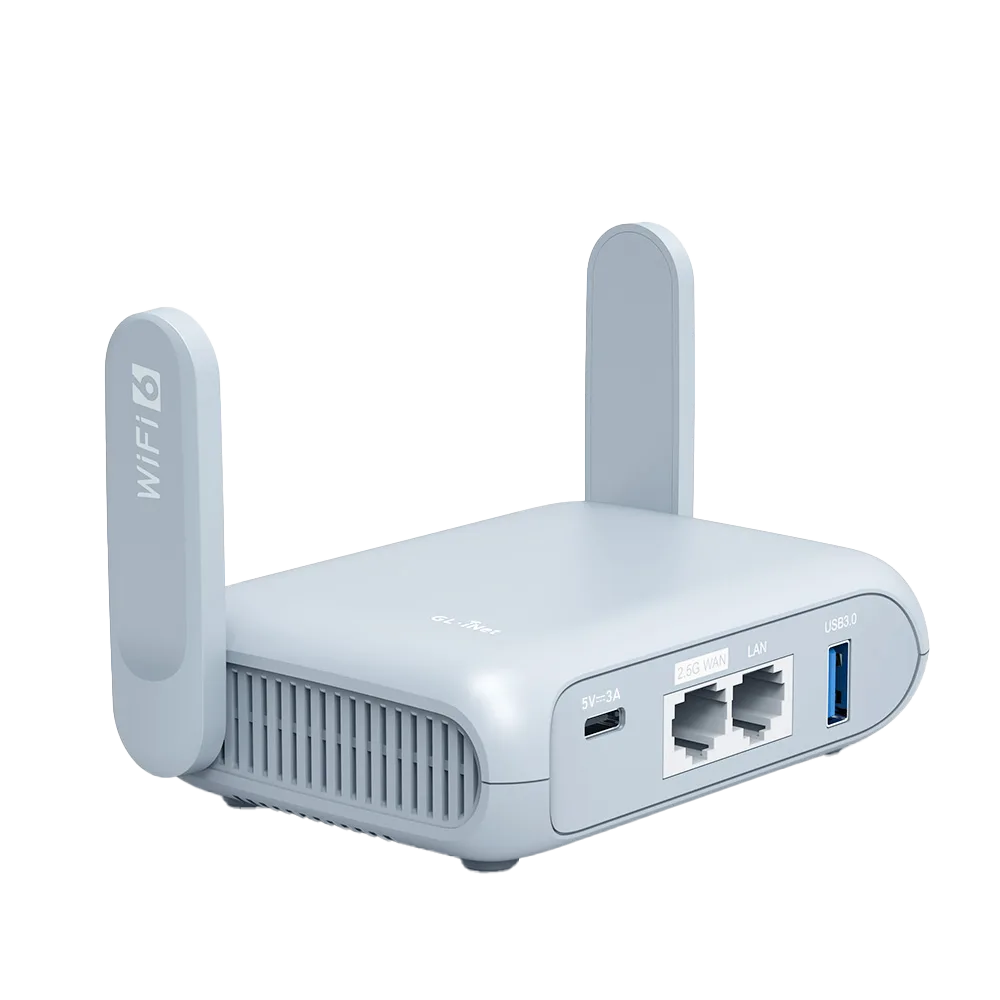
A USB port is only useful if your router has one. Beryl AX (GL-MT3000) lists one USB 3.0 port, a Type-C power input rated 5V/3A, and power consumption under 8 W. On 13 October 2026 GL.iNet's store listed it at $98.99; confirm checkout. This publication has not tested tethering on Beryl AX or any other model. [6]
The repeater path and its main trap
The other route treats the phone's hotspot like any upstream Wi-Fi network. GL.iNet's firmware 4 repeater guide has you choose the network from the scan list, or join it manually if it does not appear. If you pick one band, the router scans only that band. The guide also warns that packet loss may occur on the scanned band while scanning runs. [2]
The repeater guide includes one note specific to phones: keep the iPhone screen unlocked so the hotspot keeps sending its Wi-Fi beacon, otherwise the router may fail to detect it. Apple's own guidance for joining a Personal Hotspot is similar: keep the Personal Hotspot settings screen open until the other device connects, and try Maximize Compatibility if the connection fails after a restart. That makes the repeater path more fragile for long unattended sessions, because a locked phone can stop being visible. [2][3]
The repeater path does have one advantage. The phone does not need a cable to the router, so it can sit where cellular reception is best, such as a window ledge, while the router stays near the desk. If reception is the real constraint, write down the position you used and check it again. Moving the phone may matter more than which link you choose.
Carrier limits come before router settings
Apple states that Personal Hotspot needs a carrier that supports it, that extra fees may apply, and that the number of devices that can join depends on the carrier and the iPhone model. Android's help page says some mobile carriers limit or charge extra for tethering and recommends checking with your carrier. GL.iNet's tethering guide carries the same warning. [3][4][1]
Read the plan's tethering or hotspot terms before the trip. Note any separate hotspot allowance, any speed reduction after it, and whether roaming changes either. A travel router can increase usage without anyone noticing, because laptops start cloud sync and updates as soon as they see a normal network. Pause large syncs and operating-system updates before a working day on mobile data, or set the connection as metered on devices that support it.
Battery, heat, and power: plan for a full day
A hotspot keeps the cellular radio busy. Android's help suggests plugging devices in while tethering, turning tethering off when you finish, and letting the phone switch the hotspot off automatically when nothing is connected, if it offers that setting. [4]
Heat matters as much as battery. Apple says iPhone and iPad are designed for ambient temperatures between 0 and 35 degrees C (32 to 95 degrees F). If the inside of the device gets too hot, charging can slow or stop, and the cellular signal can weaken as radios enter a low-power state. A phone on a sunny windowsill, in a case, charging and tethering at once can hit those limits. If speeds sag in the afternoon, check whether the phone is hot before you change router settings. [5]
Power the router from its own supply where possible. GL.iNet's first troubleshooting step for tethering is to use the router's original power supply. Do not count on a router's USB port to charge the phone; no source checked here promises that. Carry a separate charger or power bank for the phone. [1]
Worked example: a fictional two-device rented-room office
Fictional scenario: Mina works from a rented room with unreliable building Wi-Fi. She has a work laptop, a personal tablet and an Android phone with a hotspot allowance on her plan. She already owns a travel router with a USB port. Her goal is one network name for both devices and the same DNS settings on each. Speed is not the goal.
Her plan, written before she changes anything: confirm the hotspot allowance with the carrier; connect the phone to the router's USB port with a cable known to carry data; enable USB Tethering on the phone; click Connect under Tethering in the router admin panel; confirm that the phone has internet on its own if the router shows connected but nothing loads. She keeps the phone on a separate charger and checks its temperature after an hour. She sets the laptop's backup client to wait for a non-metered network.
Her stopping rule: if the laptop alone on the phone's hotspot is just as stable, and the tablet is rarely used at the same time, she drops the router from her daily kit and keeps it as a fallback. This is a planning example, not a measured result.
Pitfalls and who should skip this setup
Keep a short log of each session: link type, phone position, whether the phone was charging, and when anything dropped. After two or three working days the log shows whether the router helped. Without one, it is easy to blame the router for a problem caused by reception or heat.
- Skip the router if one device on the phone hotspot already does the job; an extra layer adds setup and another device to power.
- Skip it if your carrier plan excludes tethering or charges more than the job is worth.
- Do not use a charge-only USB cable; GL.iNet's troubleshooting specifically asks for a cable that supports data. [1]
- Do not leave an iPhone hotspot locked when using the repeater path; the router may not see it. [2]
- Do not treat TTL or HL settings as permission to hide tethering from a carrier.
- Do not run cloud backups and OS updates over a capped hotspot without checking the allowance first.
- If the router shows connected but there is no internet, check the phone's own connection before changing router settings. [1]
Watch demos / Official walkthroughs
See the hardware in action.
Videos load from YouTube only when you press play. These are provider videos, not our own product tests.
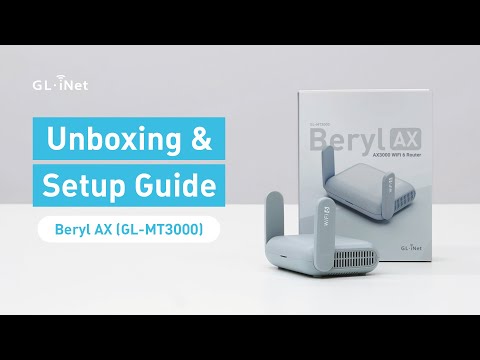
GL.iNet / Official video
Beryl AX (GL-MT3000) - Unboxing and Setup Guide
What to look for: Identify the hardware connections and setup steps for Beryl AX; other models can differ.
Watch on YouTubeQuestions before you decide
Does a travel router make my phone's mobile data faster?
No. The phone's cellular link and the carrier plan still set the ceiling. A router can give several devices one local network and one place to manage settings. It does not add mobile capacity, and it cannot lift a tethering allowance the carrier applies.
Will the router's USB port keep my phone charged while tethering?
Do not assume it will. The GL.iNet tethering guide describes a data connection and recommends the router's original power supply. It does not promise phone charging. Android's help suggests plugging devices in while tethering. Plan a separate charger and check the phone's battery during your first long session.
Should I change TTL or HL settings to hide tethering?
No. GL.iNet exposes TTL, HL and MTU under Advanced in the tethering screen, but these are not a way around your carrier's terms. Both Apple and Android say some carriers limit or charge for tethering. Check your plan instead of trying to disguise the traffic.
Sources & verification
Product details and prices can change. Check the linked provider before buying.
- GL.iNet Router Docs 4: Tethering Accessed 13 Oct 2026
- GL.iNet Router Docs 4: Repeater Accessed 13 Oct 2026
- Apple Support: Connect to the Personal Hotspot of an iPhone or iPad Accessed 13 Oct 2026
- Android Help: Share a mobile connection by hotspot or tethering Accessed 13 Oct 2026
- Apple Support: If your iPhone or iPad gets too hot or too cold Accessed 13 Oct 2026
- GL.iNet: Beryl AX (GL-MT3000) product page Accessed 13 Oct 2026
Sources link directly to providers. Product buttons may use separately labeled affiliate links. Read our disclosure.