Three ways to carry mobile data
All three options end in the same place: your devices on one Wi-Fi network that reaches the internet over a cellular connection. They differ in where the SIM lives, how many boxes you carry, and which carrier rules apply. The table summarises what GL.iNet and the carriers document for each.
| Option | What you carry | SIM lives in | Main trade-off |
|---|---|---|---|
| Phone tethering into a travel router | Phone, Beryl AX, USB data cable | Your phone | Uses your phone plan and phone; plan must allow hotspot [2][5] |
| USB modem into a travel router | Beryl AX plus a USB cellular modem | The modem | Second SIM and plan; modem must be on GL.iNet compatibility list [1] |
| Router with built-in cellular | One device such as Spitz AX or Mudi 7 | The router | One box with SIM slots; another device and plan to manage [3][4] |
Built-in cellular routers: one box, more settings
GL.iNet makes routers with the modem inside. Spitz AX (GL-X3000) is described as a dual-SIM Wi-Fi 6 cellular gateway, sold in a 5G NR variant and a 4G LTE variant. Only one SIM is active at a time and the other acts as a backup. Its guide shows a two-piece wall adapter and does not mention a battery. [4] Mudi 7 (GL-E5800) is a portable 5G Wi-Fi 7 travel router with dual nano-SIM slots and a built-in eSIM. GL.iNet says the eSIM and SIM 2 cannot be active together, and that 5 GHz and 6 GHz Wi-Fi cannot run at the same time. [3]
The cellular settings give you control a phone hotspot does not. Band masking blocks or allows specific LTE and 5G bands. Lock Operator restricts the router to one carrier, which GL.iNet says helps avoid roaming charges. Traffic statistics let you set a data cap per SIM, and dual-SIM models can switch to SIM 2 when SIM 1 reaches its cap. [1] The same page warns that a locked tower persists after reboot, even in a new location, and that you should activate a SIM in a smartphone before using it in the router. [1]
USB modem plus Beryl AX: the middle path
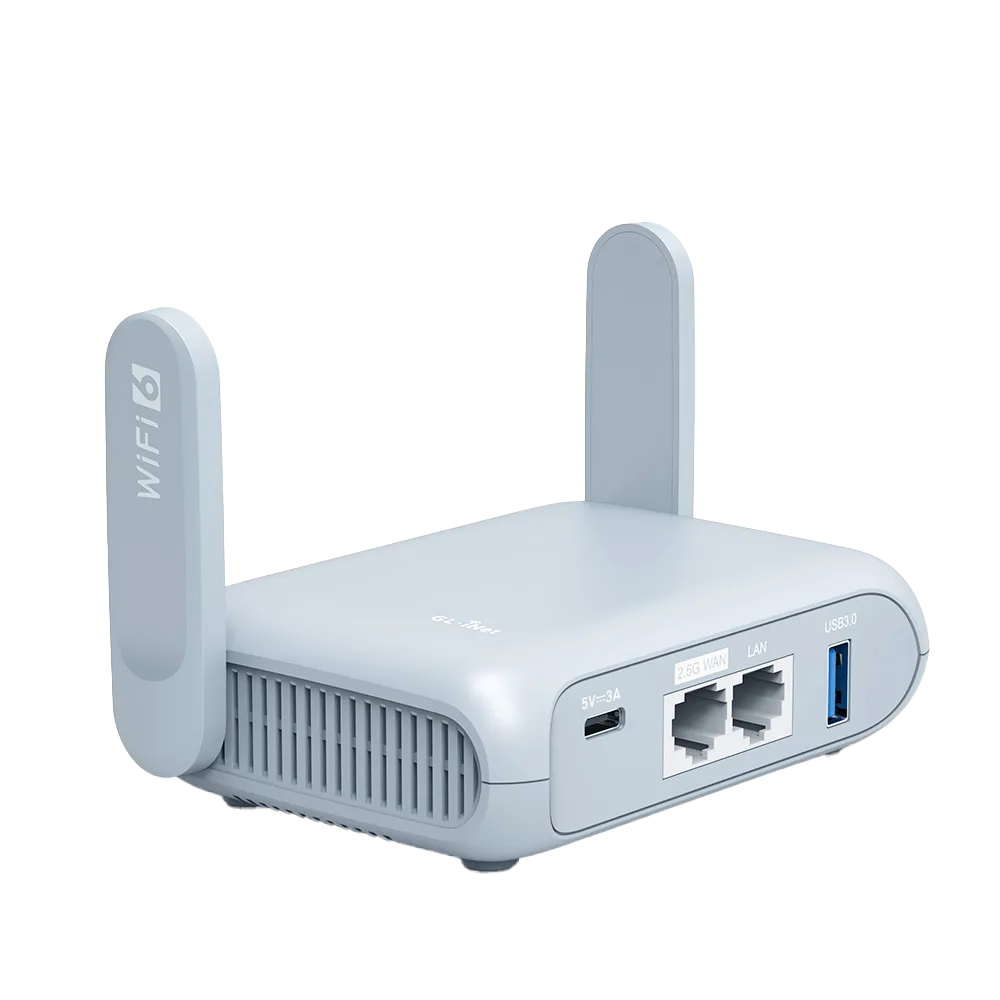
If you already own a travel router, a USB modem adds a second SIM without replacing it. GL.iNet uses GL-MT3000, the Beryl AX, with a SIMPoYo uFi modem as its example and connects it through INTERNET, Tethering. After first setup, the modem reconnects on its own when the router restarts. [1]
Compatibility is the risk. GL.iNet publishes a tested list that includes Quectel modules and USB dongles such as the Huawei E3276 and E3372h and the ZTE MF833U1 and MF79U. Some modems need specific protocol settings, and host-less modems should be managed through the Tethering page rather than the Cellular page. [1] Buy a modem that appears on that list, check that it supports the bands used where you are going, and test it at home with the SIM you will travel with.
Phone tethering: nothing new to buy, but the plan decides
The cheapest option is the phone you already carry. GL.iNet documents USB tethering for iPhone and Android: plug the phone into the router, trust the router on an iPhone, turn on Personal Hotspot or USB Tethering, then click Connect under INTERNET, Tethering. The guide notes that some carriers restrict tethering or charge extra for it. It also asks for a cable that carries data, not just charge. [2]
Apple says Personal Hotspot requires a carrier that supports it, that additional fees may apply, and that the number of devices that can join depends on your carrier and iPhone model. [5] Tethering also ties your connection to the phone. If you leave with the phone, the router loses internet. For the cable versus Wi-Fi details, see our phone tethering guide.
Carrier rules can rule out an option before hardware does
Google Fi shows how much plan terms vary within a single carrier. Its Unlimited Essentials page states there is no hotspot tethering capability and no international data while travelling. [8] Unlimited Premium includes 50 GB of full-speed hotspot use, and 50 GB of high-speed data in more than 200 destinations before speeds slow to 256 kbps. [7] For data-only SIMs, Fi says tethering is not supported, the device must be unlocked and eSIM compatible, and data-only SIM use is limited to the Flexible and Unlimited Premium plans. [6]
The lesson applies to any carrier. Before choosing hardware, read three lines in your plan: whether hotspot is included, how much hotspot and roaming data is high-speed, and whether a separate data SIM may be used in a hotspot device. If the answer to the first is no, a phone tethering setup is off the table for that plan.
| Google Fi plan or SIM | Hotspot | Data abroad |
|---|---|---|
| Unlimited Essentials | No hotspot tethering capability [8] | No international data [8] |
| Unlimited Premium | 50 GB full-speed hotspot [7] | 50 GB high-speed in 200+ destinations, then 256 kbps [7] |
| Data-only SIM on Flexible or Unlimited Premium | Tethering not supported [6] | Coverage in over 200 countries and regions [6] |
Worked example: two weeks, two people, one laptop for work
Assume two travellers for 14 days, with one laptop doing video calls and two phones. Suppose you estimate 1.5 GB a day across all devices. That figure is an assumption for the arithmetic, not a measurement, so replace it with your own usage from your phone settings. Over the trip, that is 21 GB.
On a plan like Fi Unlimited Premium, 21 GB fits inside both the 50 GB hotspot allowance and the 50 GB high-speed international allowance, so tethering the phone to a Beryl AX covers the trip with no new SIM. [7] On a plan like Fi Unlimited Essentials, there is no hotspot and no international data. [8] Your choice then is a separate SIM in a USB modem or a cellular router, plus a carrier that permits that use. If the work laptop must stay online while the phone leaves the room, a USB modem or a built-in router earns its place even on a generous phone plan.
Checklist before you buy anything
Work down the list in order. Stop at the first line that settles it.
- Read your phone plan: is hotspot included, and how much hotspot and roaming data is high-speed? [5]
- If hotspot is allowed and the allowance covers your estimate, try USB tethering into your existing travel router first [2]
- If you need a second SIM, confirm the carrier allows that SIM in a hotspot or router device [6]
- For a USB modem, pick one from the GL.iNet tested list and test it at home with the travel SIM [1]
- For a built-in cellular router, check SIM slot limits, such as one active SIM at a time or eSIM excluding SIM 2 [3][4]
- Activate any new SIM in a phone before inserting it into a router [1]
- Set a data cap in traffic statistics so a large download does not eat the allowance [1]
- Plan power: the Spitz AX guide shows a wall adapter and no battery [4]
Watch demos / Official walkthroughs
See the hardware in action.
Videos load from YouTube only when you press play. These are provider videos, not our own product tests.
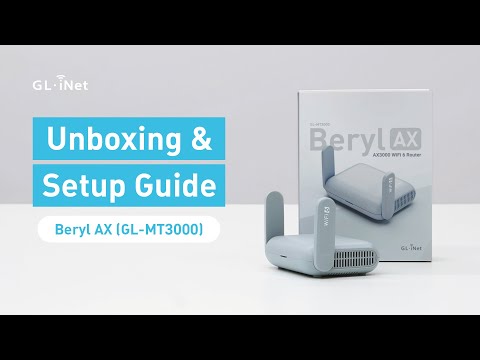
GL.iNet / Official video
Beryl AX (GL-MT3000) - Unboxing and Setup Guide
What to look for: Identify the hardware connections and setup steps for Beryl AX; other models can differ.
Watch on YouTubeQuestions before you decide
Can I put a SIM card straight into a Beryl AX?
GL.iNet documents cellular for the Beryl AX (GL-MT3000) through a USB cellular modem plugged into its USB port, managed under the Tethering page. Its own example pairs GL-MT3000 with a SIMPoYo uFi modem. Routers such as Spitz AX and Mudi 7 have SIM slots built in.
Will a data-only SIM work as a hotspot in a router?
Check the carrier first. Google Fi, for example, says tethering is not supported on devices with data-only SIMs and that the device must be unlocked and eSIM compatible. Its page does not address routers, so ask the carrier directly before buying hardware around it.
Can Mudi 7 use its eSIM and two physical SIMs at once?
No. GL.iNet says the built-in eSIM and SIM 2 are mutually exclusive and cannot be active at the same time, and that a single card should go in SIM 1.
Sources & verification
Product details and prices can change. Check the linked provider before buying.
- GL.iNet Router Docs 4: Cellular Accessed 30 Oct 2026
- GL.iNet Router Docs 4: Tethering Accessed 30 Oct 2026
- GL.iNet Router Docs 4: GL-E5800 (Mudi 7) user guide Accessed 30 Oct 2026
- GL.iNet Router Docs 4: GL-X3000 (Spitz AX) user guide Accessed 30 Oct 2026
- Apple Support: Set up a Personal Hotspot on your iPhone or iPad Accessed 30 Oct 2026
- Google Fi Help: data-only SIMs Accessed 30 Oct 2026
- Google Fi Help: Learn about the Unlimited Premium plan Accessed 30 Oct 2026
- Google Fi Help: Learn about the Unlimited Essentials plan Accessed 30 Oct 2026
Sources link directly to providers. Product buttons may use separately labeled affiliate links. Read our disclosure.