Before you arrive: the five-minute home prep
This walkthrough assumes the router's first setup is done at home: admin password set, Wi-Fi name and password chosen, firmware checked, and every device you are bringing already joined to the router's Wi-Fi once. Our first-setup guide covers that. Doing it at home means the hotel night is only about the hotel.
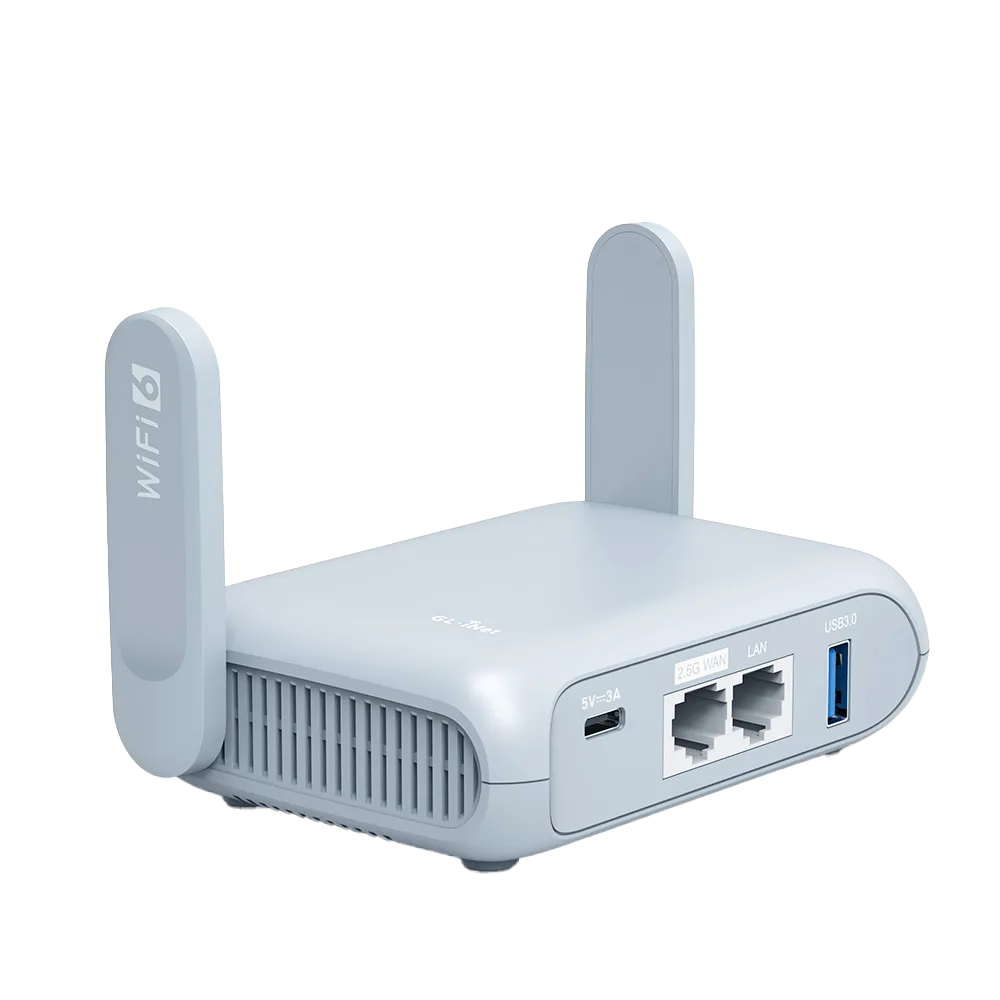
Pack the router's own power adapter. GL.iNet's tethering help advises using the original power supply, and Beryl AX's datasheet lists a USB Type-C 5V/3A power supply. [8][9] Note your firmware version too, because some menus differ between 4.7 and 4.8 or later.
This is a research guide based on GL.iNet's documentation, not a log of our own hotel stays.
The timed checklist
The times are a budget, not a promise. Hotel portals vary, and a slow one can eat five minutes alone. Each row says what normal looks like, so you know when to move on.
| Minute | Do this | Normal looks like | If not |
|---|---|---|---|
| 0 to 2 | Plug in the router with its own adapter and wait for it to start | Router starts automatically [1] | Try another wall socket; check the cable |
| 2 to 4 | Join the router's Wi-Fi from a phone or laptop; open 192.168.8.1 and log in | Admin panel loads [1] | Turn off mobile data and device VPNs [4] |
| 4 to 7 | INTERNET > Repeater > Connect; choose the hotel SSID; Apply | Repeater connects; portal not yet passed [2] | Join Other Network for a hidden SSID; try the other band [2] |
| 7 to 11 | Refresh the portal page on the same device; wait about a minute | Hotel login page appears; you sign in [3] | Use our captive-portal checklist |
| 11 to 13 | Open a new site on each other device | Each loads without its own login | Rejoin that device to the router Wi-Fi |
| 13 to 15 | VPN > VPN Dashboard; start your VPN | Tunnel connects; sites still load [6] | Turn the VPN off and recheck the base connection |
Steps 1 and 2: power up and reach the admin panel
Plug in the router. It starts on its own. Connect a device by Ethernet cable to the LAN port, or join the router's Wi-Fi using the name and key on the label, or the ones you set at home. Then open 192.168.8.1 in Chrome, Edge or Safari. [1]
GL.iNet notes the internet may not work right after you join the router's Wi-Fi. That is expected: the router has no upstream connection yet. [1] Some phones react by leaving a Wi-Fi network with no internet and quietly switching to mobile data, which makes 192.168.8.1 unreachable. Turn off mobile data for the next ten minutes, and switch off any VPN, proxy, Tailscale or ZeroTier app on that device. [4]
If you use Ethernet, the cable from your laptop goes to a LAN port, not the WAN port. [4]
Step 3: pick the hotel network in Repeater
Go to INTERNET, then Repeater, and click Connect. Pick the hotel network from the list, enter a password if there is one, and click Apply. If the hotel network does not appear, use Join Other Network and type the SSID. The router only lists networks on channels it supports, so a missing network may be on a channel it cannot use. [2]
Two repeater options are worth setting on night one. Remember saves the hotel network to Known Networks for the rest of the stay. Allow Switching to Other Saved Networks lets the router move to another saved network if this one drops. [2]
If the hotel has both a 2.4 GHz and a 5 GHz network under similar names, start with the one the front desk recommends. Band Selection limits scanning to one band if the list is crowded. [2]
Step 4: finish the hotel portal
On the device you used for the admin panel, refresh the portal page or open it again, then wait about a minute for the redirect. On a smartphone that does not redirect, GL.iNet suggests turning Wi-Fi off and on and rejoining the router; the portal should appear right after you enter the Wi-Fi password. [3]
On firmware 4.6 and later, Auto-Enable Login Mode for Public Hotspots and Enable Camouflage on the Join Network page help the portal through. Login mode may switch DNS to automatic, which can expose network activity to the hotspot provider. [3]
If the portal still does not appear after two attempts, stop here and work through our captive-portal checklist. It covers DNS rebinding, VPN, AdGuard Home, MAC cloning and the front-desk whitelist in order. This page does not repeat it.
Step 5: check every device, then add the VPN last
Once one device has internet, the others should not need a login of their own. On each device, open a site you have not visited today, so you are not looking at a cached page. A device that fails usually rejoined the hotel Wi-Fi directly instead of the router; forget the hotel network on it and rejoin the router's network.
If the router shows a warning that the LAN subnet is in conflict with the WAN subnet, the hotel uses the same address range as your router. Click Change LAN Subnet, change the third number (8 by default) to another value such as 192.168.10.1, apply, and reconnect at the new address. [5]
Now start the VPN from VPN, then VPN Dashboard. [6] On firmware 4.8 and later each tunnel has its own Kill Switch, which is on by default once the tunnel is active and blocks that tunnel's traffic if the VPN fails. [7] That is why it comes last: with a kill switch on and no tunnel up, the portal page cannot load. Before checking out of the hotel, leave the VPN on. At the next hotel, turn it off first, pass the portal, then turn it back on.
If you need to start over
On Beryl AX, the datasheet lists two reset levels on the reset button: a press of more than 3 and less than 8 seconds restores network settings to the initial state, and a press of 8 seconds or longer restores factory settings. [9] The shorter press is the one to try first in a hotel, because a factory reset also wipes your admin password, Wi-Fi name and VPN profiles.
Watch demos / Official walkthroughs
See the hardware in action.
Videos load from YouTube only when you press play. These are provider videos, not our own product tests.

GL.iNet / Official video
Beryl AX (GL-MT3000) - Unboxing and Setup Guide
What to look for: Identify the hardware connections and setup steps for Beryl AX; other models can differ.
Watch on YouTubeQuestions before you decide
Why should the VPN be turned on last?
Because the hotel login page has to load first. GL.iNet's captive-portal help lists disabling all VPN connections, and turning off DNS Rebinding Attack Protection, as fixes when the portal does not appear. Finish the portal, confirm the internet works, then enable the VPN from VPN Dashboard.
The admin page 192.168.8.1 will not load. What is wrong?
GL.iNet lists the common causes: the phone dropped to mobile data because the Wi-Fi has no internet yet, a VPN or proxy app on the device, being on the wrong network, or a changed router address. Turn off mobile data and device VPNs, rejoin the router's Wi-Fi, and try again.
Do I need to log in to the hotel portal on every device?
No. You finish the portal once from one device connected to the router. The hotel network deals with the router, and GL.iNet's portal help shows hotels identifying the router's MAC address, which is why its fixes include MAC cloning and asking staff to whitelist the router.
What does a subnet conflict warning mean?
The hotel network and your router are using the same address range. GL.iNet shows a message asking you to change the LAN subnet. Click Change LAN Subnet, change the third number of 192.168.8.1 to something else such as 192.168.10.1, apply, and reconnect at the new address.
Sources & verification
Product details and prices can change. Check the linked provider before buying.
- GL.iNet Router Docs 4: First time setup Accessed 30 Oct 2026
- GL.iNet Router Docs 4: Repeater Accessed 30 Oct 2026
- GL.iNet Router Docs 4: How to connect a GL.iNet router to public hotspots with a Captive Portal Accessed 30 Oct 2026
- GL.iNet Router Docs 4: Cannot access the router through 192.168.8.1 Accessed 30 Oct 2026
- GL.iNet Router Docs 4: How to resolve a subnet conflict? Accessed 30 Oct 2026
- GL.iNet Router Docs 4: VPN Dashboard Accessed 30 Oct 2026
- GL.iNet Router Docs 4: How to Block Non-VPN Traffic (VPN Kill Switch) Accessed 30 Oct 2026
- GL.iNet Router Docs 4: Tethering Accessed 30 Oct 2026
- GL.iNet: GL-MT3000 (Beryl AX) datasheet, ver. 20250320 Accessed 30 Oct 2026
Sources link directly to providers. Product buttons may use separately labeled affiliate links. Read our disclosure.