Router controls versus device controls
A travel router gives the family one private network in a hotel, rental or campsite. Router-level controls apply to whatever devices you assign while they are connected to that network. Device-level controls, such as Apple Screen Time and Google Family Link, are set on the child's account or device and go with it, including onto mobile data or a friend's Wi-Fi. Most families on a trip need both: the router for a consistent bedtime cut-off on the shared network, and the device controls for apps, purchases and contacts. [1][4][5]
| Control | GL.iNet Parental Control | Apple Screen Time | Google Family Link |
|---|---|---|---|
| Where it applies | Devices on the router's network [2] | The child's iPhone or iPad [4] | The child's Android device or Chromebook; Chrome settings on other platforms [5][6] |
| Internet off at night | Bedtime schedule per rule, customisable by weekday [2] | Screen Time Schedules choose which apps are available at different times [4] | Daily limits by day of week, per device; parent can lock the device [6] |
| Website or category blocking | Categories such as Gambling, Sexual Content, Social Media, Games; manual domains [2] | Limit Adult Websites, allow specific sites, Ask to Browse [4] | Chrome content filter, approved and blocked sites [5] |
| App time limits | Not described in GL.iNet's v4.9 guide [2] | Time Allowances by app category [4] | Daily limits lock the whole device; per-app limits are a separate Family Link setting [6] |
| Purchases and contacts | No | Ask to Buy; who the child can contact [4] | Not covered in the pages we reviewed |
| Stops working when | The device leaves the router's network or uses a randomized MAC [1] | Requires Family Sharing and applies to the child's own Apple account and devices [4] | On some platforms the child signs out of Chrome or uses another browser [5] |
What GL.iNet Parental Control does
On firmware 4.9 and later, Parental Control is organised as named rules. Each rule covers selected child devices, a bedtime schedule and a content filter. During bedtime, GL.iNet says the internet on the selected devices will be unavailable. The bedtime applies every day by default, and 'Customize Days' lets you set different times per weekday. [2]
The content filter selects Gambling, Malicious Content and Sexual Content by default, and you can add categories such as Games, Shopping, Social Media and Entertainment. Advanced Settings let you add domains manually. GL.iNet also says you can block apps and websites in one click. A device only appears in the list when it is connected to the router by Wi-Fi or Ethernet. [2]
The router's clock must be correct for schedules to work; GL.iNet points to SYSTEM > Time Zone. On a trip across time zones, check this the first evening. [2]
Older firmware (4.8 and earlier) uses profiles with rulesets and time slots, blocks by domain rather than category in its Local Version, and offers a separate Bark cloud version on a few home routers in the United States, Australia and South Africa. [1]
Which travel models support it
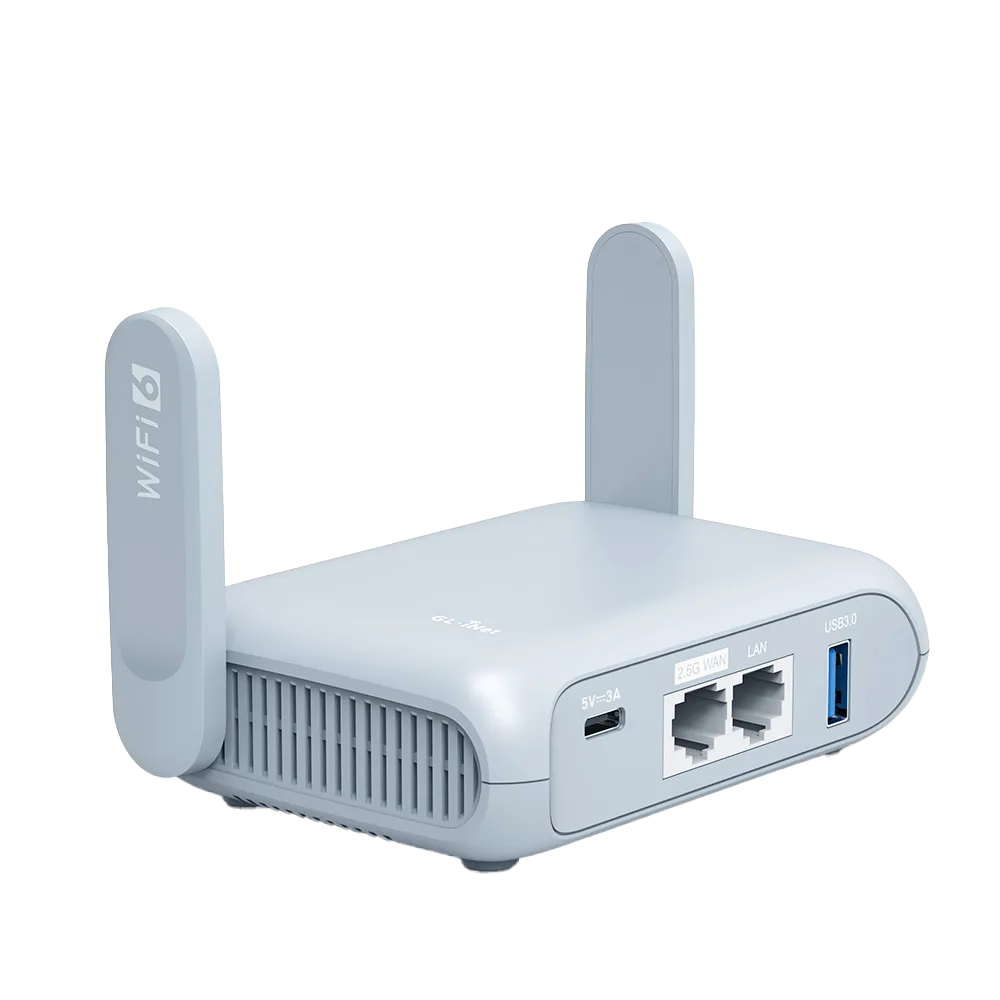
This is where model choice matters. GL.iNet's Parental Control page lists GL-MT3000 (Beryl AX), GL-AXT1800 (Slate AX) and GL-BE3600 (Slate 7) among models supporting the Local Version, and lists GL-SFT1200 (Opal) and GL-MT300N-V2 (Mango) as unsupported. It adds that some models do not support Parental Control due to insufficient memory. [1]
AdGuard Home follows the same split for these travel models: Beryl AX, Slate AX and Slate 7 are on the supported list and Opal is not. [3]
| Model | Parental Control (Local) [1] | AdGuard Home [3] |
|---|---|---|
| GL-MT3000 (Beryl AX) | Supported | Supported |
| GL-AXT1800 (Slate AX) | Supported | Supported |
| GL-BE3600 (Slate 7) | Supported | Supported |
| GL-SFT1200 (Opal) | Not supported | Not supported |
| GL-MT300N-V2 (Mango) | Not supported | Not supported |
Limits to know before you rely on it
- Randomized MAC addresses: GL.iNet warns that a device using a randomized MAC for each network connection may bypass rules. Turn off random addresses for the travel network on the child's device and add it again. [1]
- Unmanaged devices: the older firmware offers 'Block WAN for Unmanaged Devices' to cut internet for devices not on any profile; check whether your firmware has an equivalent before relying on it. [1]
- DNS caching: changes may not take effect until browser or system DNS caches clear. [1]
- AdGuard Home: enabling 'AdGuard Home Handle Client Requests' makes parental control rules ineffective, according to GL.iNet. [3]
- Mobile data: once a phone leaves the router's Wi-Fi, router rules no longer apply. Device controls are the only layer left.
What device controls add
Apple's Screen Time parental controls need Family Sharing with the child in the group. Apple notes that its newest parental controls require iOS 27 or iPadOS 27 or later. They cover Content and Privacy Restrictions such as age ratings, Time Allowances by app category, Screen Time Schedules, Ask to Browse and Limit Adult Websites in Safari and other supported browsers, Ask to Buy for purchases, and limits on who the child can contact in Messages, FaceTime and Phone. [4]
Google Family Link sets daily screen time limits by day of the week on Android devices and Chromebooks, applies them per device, and lets a parent lock the device, with calls still working. A parent access code can unlock it when it is offline. [6] For Chrome, Family Link offers a content filter, approved and blocked site lists, and turns off Incognito for a managed account. Google warns that no filter is perfect, that on Windows, Mac, Linux, iPhone and iPad a child can sign out of Chrome or switch profiles, and that other browsers may not follow these settings. [5]
A setup checklist for the first night
- Connect the router, complete the hotel login, then check SYSTEM > Time Zone so bedtime fires at local time. [2]
- Join each child's device to the travel Wi-Fi and confirm it appears in the Parental Control device list. [2]
- Turn off private or randomized addresses for that network on each child device. [1]
- Create one rule per child with bedtime and the default categories; add domains only where needed. [2]
- Leave 'AdGuard Home Handle Client Requests' off if you use AdGuard Home. [3]
- Check that Screen Time or Family Link is still set on the device for times it uses mobile data. [4][6]
Worked example: a fictional family of four
The Okafors travel with a Beryl AX, two parents' phones, an iPad for a nine-year-old and an Android phone for a thirteen-year-old. They set one router rule per child with a 9 pm and 10 pm bedtime and keep the default blocked categories. [2] On the iPad they add Ask to Buy and a daily app allowance through Screen Time [4]; on the Android phone they keep Family Link's daily limit, because the teenager's phone also uses mobile data where the router can't help. [6]
Had they packed an Opal instead, they would rely on device controls alone, since GL.iNet lists Opal as unsupported for Parental Control. [1]
Who can skip router controls
If your children only use devices already managed through Screen Time or Family Link, and you do not need a network-wide bedtime, device controls may be enough. Router controls help most with shared tablets, games consoles or laptops that have no parental account. This guide is based on vendor documentation; we have not tested these controls.
Watch demos / Official walkthroughs
See the hardware in action.
Videos load from YouTube only when you press play. These are provider videos, not our own product tests.

GL.iNet / Official video
Beryl AX (GL-MT3000) - Unboxing and Setup Guide
What to look for: Identify the hardware connections and setup steps for Beryl AX; other models can differ.
Watch on YouTubeQuestions before you decide
Does the Opal travel router support parental controls?
GL.iNet's Parental Control documentation lists GL-SFT1200 (Opal) among unsupported models for the Local Version, and its AdGuard Home page also lists Opal as unsupported. GL-MT3000 (Beryl AX) appears on both supported lists.
Why might a router rule not apply to my child's phone?
GL.iNet warns that a device using a randomized MAC address for each network connection may bypass rules, and suggests disabling random MAC on that device and adding it again. Router rules also stop applying when the device leaves the router's network, for example on mobile data.
Can AdGuard Home and Parental Control run together?
GL.iNet's AdGuard Home page says enabling 'AdGuard Home Handle Client Requests' will render domain-based VPN policies and parental control rules ineffective. If you rely on router parental rules, leave that option off.
Sources & verification
Product details and prices can change. Check the linked provider before buying.
- GL.iNet Router Docs: Parental Control (firmware 4.8 and earlier, with supported models) Accessed 30 Oct 2026
- GL.iNet Router Docs: Parental Control (firmware 4.9 and later) Accessed 30 Oct 2026
- GL.iNet Router Docs: AdGuard Home Accessed 30 Oct 2026
- Apple Support: Set up parental controls to manage your child's iPhone or iPad Accessed 30 Oct 2026
- Google For Families Help: Chrome and your child's Google Account Accessed 30 Oct 2026
- Google For Families Help: Manage your child's screen time Accessed 30 Oct 2026
Sources link directly to providers. Product buttons may use separately labeled affiliate links. Read our disclosure.